THE ASSESSMENT CENTRE
How to Register for SwimSafer CAMS Account
All SwimSafer candidates are required to create a CAMS account before they can be registered for assessment.
Please follow the steps below carefully. After creating the account, remember to tag The Assessment Centre as your assessment provider.
Step-by-Step CAMS Account Setup
Step 1:
Create CAMS Account
Step 2:
Accept Terms and Conditions
Step 3:
Retrieve details via Singpass
Step 4:
Connect as Child
Step 5:
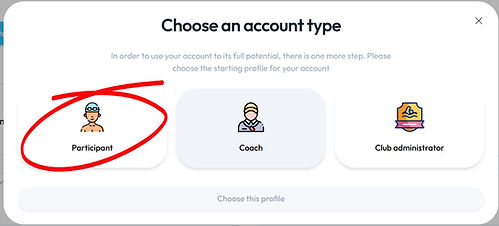
Select Participant Role
Step 6:
Selecting Club & Coach
Step 7:
Wait for Approval
Go to the CAMS portal:
https://saqswimsg.org.sg/home/
Click “Register” to create a new account.

Scroll to the end of the Terms and Conditions.
Tick the “I accept the terms and conditions” checkbox, then click “Continue”.

Log in with Singpass to retrieve your information and continue with the registration.
Please note: SwimSafer CAMS is currently available for Singpass users only.

After logging in, click “Connect as child” to allow you to view and interact with the application as if you were the child


Select “Participant” as the account type.
For SwimSafer assessments under The Assessment Centre, please select:
Club: The Assessment Centre
Coach: Chan Yang Sheng Casper
Then click “Send the link request to your coach”.
Important: Casper is listed as the CAMS administrator for The Assessment Centre. He will review and approve the request regardless of who the student’s actual swimming coach is.

Your request will be reviewed by The Assessment Centre.
Approval is usually completed within 2–3 working days. Once approved, the student’s CAMS account will be linked to The Assessment Centre.
There is no need to submit another request while approval is pending.
